Edit or delete accommodation
Last updated 23 September 2026
You need the club administrator role for the club you're managing.
Step 1 — Find the card
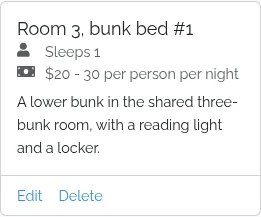
Go to Accommodation and choose the Manage accommodation tab. Every room your club has shows as a card, with Edit and Delete links along the bottom.
Step 2 — Edit it
Click Edit. The form is the same one you filled in when you added the room, pre-filled with what's there now.
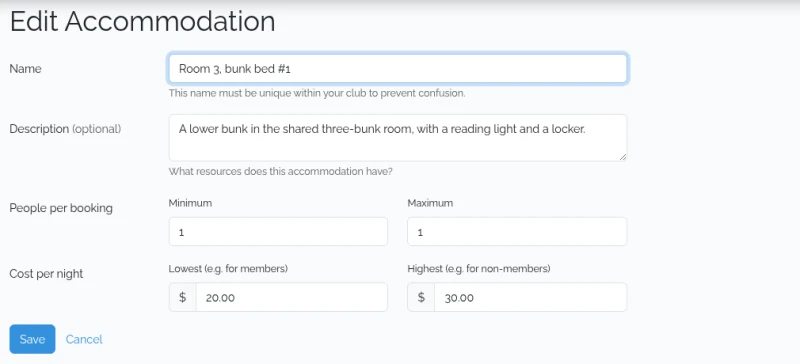
Click Save to keep your changes, or Cancel to go back without saving. The same rules apply as when adding: the name must still be unique within your club and 30 characters or fewer.
What editing does to existing bookings
Existing bookings aren't touched. They keep their dates and their guest details, and they follow the room — so if you rename Bunkroom A to Room 1, bookings already made for it show as Room 1 from then on.
Changing a price doesn't change what anyone was quoted in a confirmation email that's already been sent.
Deleting a room
Click Delete on the card and confirm. The card disappears and the room stops being offered on the booking page.
A room with bookings can't be deleted. You'll be told to delete the bookings first — and that includes bookings in the past, which the bookings list hides by default. See delete a booking for how to widen the date range and find them.
Deleting a room is meant to be permanent — there's no undo in the app.